Plan your tasks around Google Calendar
Jurnie can display your Google Calendar events alongside tasks. Connect your calendar to plan around existing commitments, then decide separately whether dated tasks should sync back to Google Calendar.
By the Jurnie team · Updated September 29, 2026
1. Connect your Google account
Sign in to Jurnie, open the user menu, and select Settings → Integrations. Find Google Calendar and select Connect. Review Google’s permission screen and choose the account whose calendar you want to use.
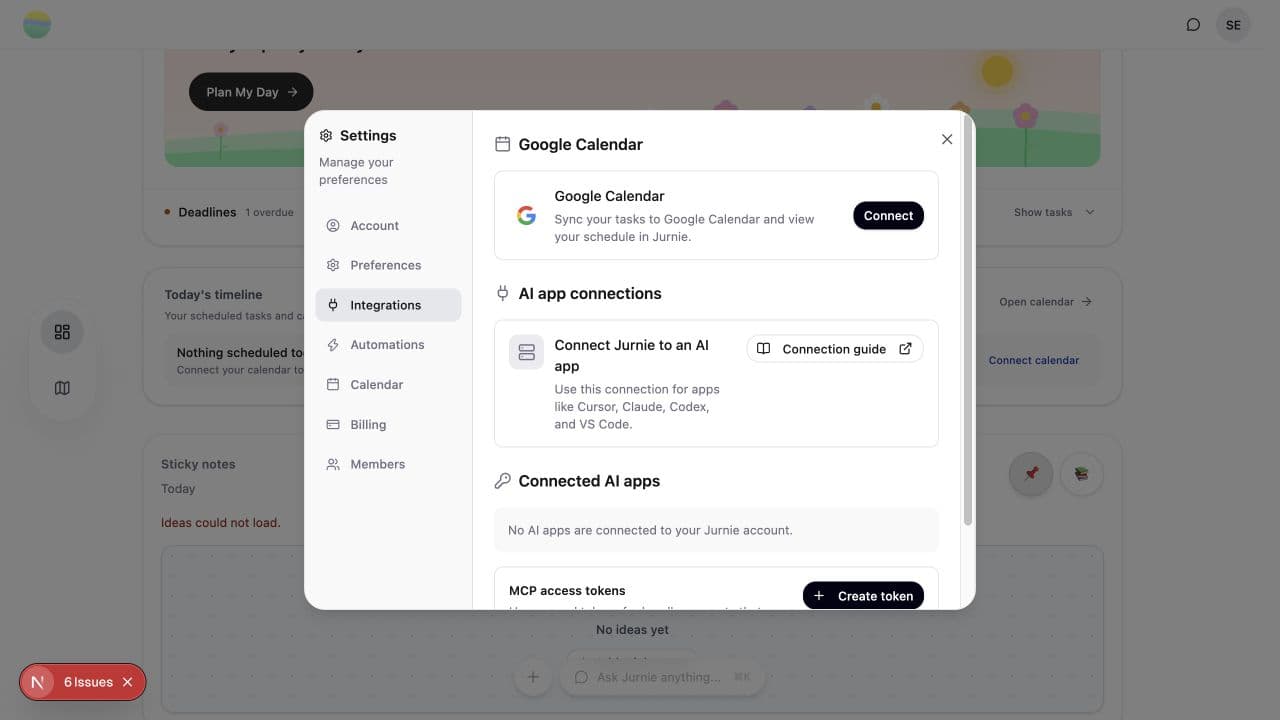
2. Open your planning view
Go to Journeys, then choose Calendar view in Tasks. Switch between Month, Week, and Today to find the useful level of detail. Use Calendar settings to check which calendars are displayed.
Start by looking at commitments already on your calendar. Choose a small task you can realistically fit around them instead of treating an empty task list as an entirely free day.
3. Decide whether to sync dated tasks
After connecting, Settings → Integrations includes a Sync Tasks to Calendar setting. When enabled, adding a due date to a task automatically creates an all-day event in Google Calendar.
A due date is not a time block. An all-day event marks the date without reserving a specific hour. If you need a protected work session, create a timed calendar event for it and check that it fits around your existing commitments.
Example: keep a portfolio task realistic
Suppose you have meetings in the morning and 30 minutes free in the afternoon. Choose a task such as “Draft one project summary,” rather than “Finish the portfolio.” Give it the appropriate date in Jurnie. If you want to reserve those 30 minutes, create a timed event in Google Calendar.
The weekly planning guide shows how to break that larger goal into a few finishable tasks.
What if events are missing?
Check that Google Calendar is connected in Settings → Integrations, that you connected the intended Google account, and that the relevant calendars are selected in the planning view. If the problem continues, contact support@jurnie.co with the affected view and time range. Do not send your password or access tokens.
Can I disconnect later?
Yes. Use Disconnect in Settings → Integrations. Calendar access is optional; you can still plan with Journeys and tasks without connecting Google. See the privacy policy for how connected calendar data is handled.